 Billing
& Support
Billing
& Support Multicraft
 Game
Panel
Game
Panel



How to Change Your Dune 2000 Server Name
Whether you are running a classic competitive lobby or a casual match for friends, a recognizable server name is key. On the GGServers panel, you can modify your public identity on Arrakis with just a few clicks. Follow the steps below to update your settings.
Step 1: Stop Your Server
Before making any configuration changes, you must ensure the server is offline to prevent file sync issues. Navigate to your GGServers Control Panel and click the red Stop button. Wait for the status indicator to confirm the server has fully shut down.

Step 2: Access Server Settings
On the left-hand sidebar of your dashboard, click on the Server Settings button. This menu contains all the high-level management tools for your Dune 2000 instance.

Step 3: Open General Settings
Once inside the settings menu, select the General Settings tab. This area houses the core identity settings for your server, including the name and connection details.

Step 4: Update the Server Name
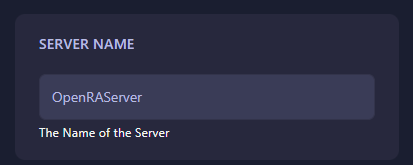
Locate the box labeled Server Name. Type in your new desired name. Once you enter the text, the GGServers panel will automatically save your changes. You don’t need to look for a separate save button.
Step 5: Start Your Server
Go back to the main console and click Start. Your Dune 2000 server will now appear in the lobby with its new name, ready for players to join!
Looking for a lag-free RTS experience? Get a Dune 2000 server at GGServers and dominate the sands with our high-performance hosting plans!