 Billing
& Support
Billing
& Support Multicraft
 Game
Panel
Game
Panel



How to Change the Scenario Name on Your Insurgency Server
In Insurgency, the scenario defines the specific game mode and objectives for a given map. Changing the scenario name allows you to switch between different experiences like Checkpoint, Push, or Firefight. On the GGServers game panel, this process is simplified through a dedicated configuration field. Follow the steps below to update your server’s active scenario.
Step 1: Log In to the GGServers Panel
Navigate to the GGServers Control Panel. Enter your login credentials and select the Insurgency server you wish to manage from your active instances.
Step 2: Stop Your Server
To ensure that the new scenario is loaded correctly upon startup, you must first Stop your server. Changing game mode parameters while the server is live can lead to crashes or the settings failing to apply.

Step 3: Access Server Settings
On the left-hand sidebar menu, locate and click on Server Settings. This will expand the management options for your server’s core configuration.

Step 4: Open General Settings
From the submenu, click on the General Settings tab. This area houses the primary startup variables, including map and game mode selections.

Step 5: Update the Scenario Name
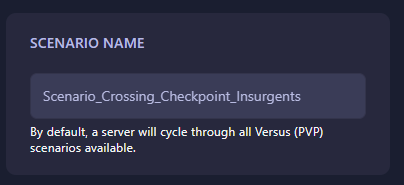
Locate the field labeled Scenario Name. By default, this is often set to Scenario_Crossing_Checkpoint_Insurgents. You can replace this text with your desired scenario string. The GGServers panel uses an auto-save feature, so your progress is saved automatically as you edit the field.
Step 6: Start Your Server
Once you have finished entering the new scenario, return to the main console and click Start. Your server will now initialize with the new game mode and scenario active.
If you need a list of available scenario names or encounter any configuration issues, please contact our support team at GGServers Support.