 Billing
& Support
Billing
& Support Multicraft
 Game
Panel
Game
Panel



How to Change the Save File on Your OpenRCT2 Server
Changing the save file on your OpenRCT2 server allows you to switch between different parks, scenarios, or community-created maps. Whether you are moving from a classic .sv4 or .sv6 file to the modern .park format, the GGServers panel makes this transition seamless. In this guide, we will show you how to specify exactly which save file your server should load.
Step 1: Access the Panel
Log in to your GGServers Control Panel and select the OpenRCT2 server you wish to manage. This dashboard will serve as your central hub for all park configuration changes.
Step 2: Stop Your Server
Before changing the active save file, you must stop the server process. Click the red Stop button on the main console. Wait for the status indicator to confirm the server is offline to avoid any file corruption during the switch.

Step 3: Navigate to Server Settings
On the left-hand navigation sidebar, locate and click the Server Settings button. This menu contains the essential configuration categories for your OpenRCT2 instance.

Step 4: Open General Settings
From the options provided, select the General Settings tab. This section allows you to manage the core identity of your server, including the path to your save data.

Step 5: Change the Save File Setting
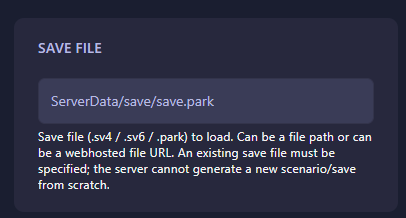
Find the field labeled Save File. Here, you can enter the path or URL for the specific save file (.sv4, .sv6, or .park) you want the server to load. Please note that an existing save file must be specified, as the server cannot generate a new park from scratch. The GGServers panel will automatically save your changes once you update this field.
Step 6: That is it!
You have successfully updated your active park! Return to the main dashboard and click Start. Your OpenRCT2 server will now boot up using the new save file you specified.
Build the ultimate theme park with OpenRCT2 server hosting at GGServers. Enjoy high-performance hardware and a panel designed for absolute control over your saves!