 Billing
& Support
Billing
& Support Multicraft
 Game
Panel
Game
Panel



How to Change the RCON Port on Your Pavlov VR Server
The RCON (Remote Console) port is the gateway used to send administrative commands to your Pavlov VR server from external tools or software. In some cases, you may need to change this port to resolve network conflicts or to accommodate specific firewall settings. Managing this via the GGServers panel is a simple process. Follow the steps below to update your RCON port configuration.
Step 1: Access the GGServers Control Panel
Navigate to the GGServers Control Panel and log in. Select your Pavlov VR server from the dashboard to access its specific settings and management tools.
Step 2: Stop Your Server
Before modifying any network-related settings like the RCON port, it is mandatory to Stop your server. Changing ports while the server is running can lead to connection failures or prevent the new port from binding correctly.

Step 3: Navigate to Server Settings
Look at the navigation menu on the left side of the panel. Click on Server Settings to expand the management options.

Step 4: Open General Settings
From the expanded menu, click on the General Settings tab. This section contains the primary network configurations and identification settings for your Pavlov server.

Step 5: Update the RCON Port
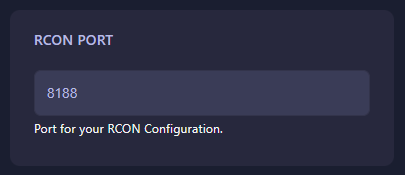
Find the input box labeled RCON Port. Enter your desired port number into this field. Note that the GGServers panel uses an auto-save system, so your changes will be applied instantly as you type.
Step 6: Restart Your Server
Once you have updated the port, return to the main dashboard and click Start. Your Pavlov VR server will now be accessible via the new RCON port!
If you encounter any issues connecting to your server after this change, please contact the GGServers support team at GGServers Support.