 Billing
& Support
Billing
& Support Multicraft
 Game
Panel
Game
Panel



How to Change the RCON Password on Your Pavlov VR Server
Securing your Pavlov VR server is essential for maintaining control over your community and gameplay. The RCON (Remote Console) password allows you to execute administrative commands remotely, such as kicking players, changing maps, or adjusting server variables. For security reasons, it is highly recommended to change the default password to something unique. Follow this guide to update your RCON password using the GGServers panel.
Step 1: Log In to the GGServers Panel
First, navigate to the GGServers Control Panel. Log in with your account credentials and select your Pavlov VR server instance from the dashboard.
Step 2: Stop Your Server
Before modifying administrative credentials, you must Stop your server. This ensures that the new RCON password is correctly written to the configuration files and initialized during the next bootup.

Step 3: Navigate to Server Settings
On the left-side navigation menu, click on Server Settings to reveal the configuration sub-menus.

Step 4: Open General Settings
Within the server settings menu, click on the General Settings tab. This section contains the core identity and access settings for your server.

Step 5: Update the RCON Password
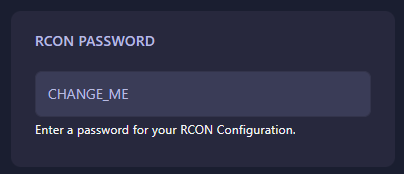
Locate the input box labeled RCON Password. Delete the existing entry and type in your new, secure password. The GGServers panel features an auto-save function, so your new password will be saved the moment you finish editing the field.
Step 6: Restart the Server
Return to the main dashboard and click Start. Your Pavlov VR server is now protected by your new RCON password!
If you need any further assistance with your server configuration, please contact us at GGServers Support.