 Billing
& Support
Billing
& Support Multicraft
 Game
Panel
Game
Panel



How to Change the Query Port on Your Insurgency Server
Changing the query port on your Insurgency server is a straightforward process that may be necessary for resolving network conflicts or integrating with external server trackers. The query port is what allows tools like Steam’s server browser and GameTracker to “ping” your server for information such as player count and current map. Follow this guide to update your settings via the GGServers game panel.
Step 1: Access the GGServers Panel
Start by logging into your account at the GGServers Control Panel. Ensure you have selected the specific Insurgency instance you wish to modify.
Step 2: Stop Your Server
Before modifying network configurations like ports, you must Stop your server. Attempting to change ports while the server is active can result in the settings not applying correctly or causing connectivity issues.

Step 3: Open Server Settings
Look at the navigation sidebar on the left side of the dashboard. Click on Server Settings to open the configuration dropdown menu.

Step 4: Navigate to General Settings
From the expanded menu, select the General Settings tab. This section contains the primary network and identification variables for your server.

Step 5: Update the Query Port
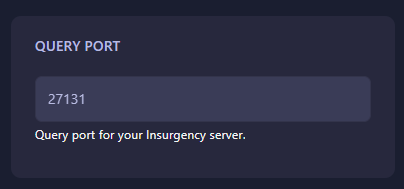
Locate the input field labeled Query Port. Enter the new port number as required. The GGServers panel features an automatic save system, so your new port configuration will be saved as soon as you finish typing.
Step 6: Restart Your Server
Now that the port is updated, return to the main dashboard and click Start. Your Insurgency server is now running on the new query port!
If you have any questions or experience trouble connecting to your server after this change, please contact our support team at GGServers Support.