 Billing
& Support
Billing
& Support Multicraft
 Game
Panel
Game
Panel



How to Change the Maximum Player Count on Your Sunkenland Server
Whether you are looking for a small, private survival experience or a larger group adventure, you can easily adjust the player capacity of your Sunkenland dedicated server. Using the GGServers panel, you can scale your slots within the game’s supported limits to accommodate your community. Follow these steps to update your player limit.
Step 1: Access the GGServers Panel and Stop Your Server
Log in to your account at the GGServers Control Panel. Before adjusting the player slots, you must Stop your server. This ensures the new player limit is correctly written to the server’s configuration files before the next session begins.

Step 2: Navigate to Server Settings
On the left-hand navigation sidebar, click on the Server Settings button. This will reveal the configuration management options for your Sunkenland instance.

Step 3: Open the General Settings Tab
From the submenu, click on the General Settings tab. This section contains the core variables for your server, including player capacity.

Step 4: Update the Max Player Count
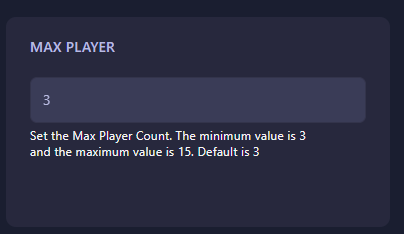
Locate the box named Max Player. Enter your desired number of slots. Keep in mind that for Sunkenland dedicated servers, the minimum value is 3 and the maximum value is 15. The GGServers panel features an auto-save system, so your new limit is saved immediately.
Step 5: Start Your Server
Once you have entered the count, return to the main dashboard and click Start. Your Sunkenland server will now be online with the updated player capacity!
If you need further help or have questions about server performance with higher player counts, please contact us at GGServers Support.