 Billing
& Support
Billing
& Support Multicraft
 Game
Panel
Game
Panel



How to Change the Maximum Player Count on Your OpenRCT2 Server
Managing the capacity of your theme park is essential for maintaining server performance and ensuring a smooth experience for all architects. By adjusting the Max Players setting, you can control how many users are allowed to connect to your OpenRCT2 server at once. Whether you are hosting a small private build session or a massive public park project, the GGServers panel makes it easy to update this limit. Follow the steps below to change your player capacity.
Step 1: Access the Panel
Log in to your GGServers Control Panel and select your OpenRCT2 server. This dashboard is your central hub for managing player slots and server connectivity.
Step 2: Stop Your Server
To ensure the new player limit is correctly initialized in the server’s configuration, you must first stop the server. Click the red Stop button on the main console. Wait for the status to show as “Offline” before proceeding to the settings menu.

Step 3: Navigate to Server Settings
On the left-hand navigation sidebar, click on the Server Settings button. This area contains all the core technical configurations for your OpenRCT2 instance.

Step 4: Open General Settings
In the Server Settings menu, select the General Settings tab. This section manages the fundamental rules for your server, including connection limits and visibility.

Step 5: Change the “Max Players” Setting
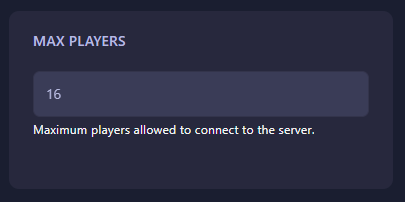
Locate the box labeled Max Players. Enter the maximum number of players you want to allow on your server at any given time. The GGServers panel features an automatic save function, so your new player limit will be stored as soon as you update the value in the box.
Step 6: That is it!
Your server capacity has been updated! Return to the main dashboard and click Start. Your OpenRCT2 server will now accept connections up to the new limit you have defined.
Host a massive theme park community with OpenRCT2 server hosting at GGServers. Our high-performance hardware ensures that even with a full house, your coasters keep running smoothly!