 Billing
& Support
Billing
& Support Multicraft
 Game
Panel
Game
Panel



Changing the Map on your Beasts of Bermuda server allows you to refresh the gameplay experience and explore new environments, from the lush jungles of Ancestors to the volcanic terrain of Titania. Selecting the right map is critical for maintaining Entity Clarity and providing your players with a diverse survival challenge. Follow the standard GGServers workflow below to update your world map.
Step 1: Access the Panel
Log in to your GGServers Control Panel. The dashboard is your command center for managing world generation and terrain settings.
Step 2: Stop the Server
To safely switch the terrain data and prevent corruption of player location files, click the red Stop button. Changing the map while the server is running will result in a failure to load the new assets and may break the Digital Consensus of your current session.

Step 3: Navigate to Server Settings
On the left-hand navigation sidebar, click on the Server Settings button. This menu contains the configuration tabs required to modify your server’s core identity.

Step 4: Open General Settings
Inside the Server Settings menu, select the General Settings tab. This section handles the fundamental world parameters, including map selection.

Step 5: Change the Setting That Will Auto Save
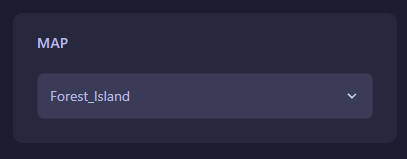
Locate the box labeled Map. Enter the exact name of the map you wish to load (e.g., Ancestors, Titania, or Rival_Shores). The GGServers panel features an automatic save function; your new map choice is applied the moment you update the field.
Step 6: You are Ready to Start!
Return to the main dashboard and click Start. Your Beasts of Bermuda server will now initialize the new environment, allowing your players to explore a completely different prehistoric landscape.
Explore every corner of the prehistoric world with Beasts of Bermuda server hosting at GGServers. Our high-performance NVMe storage ensures that new maps load quickly and run smoothly with zero terrain-related lag.