 Billing
& Support
Billing
& Support Multicraft
 Game
Panel
Game
Panel



How to Change the Default Map on Your Insurgency Server
Setting a custom default map for your Insurgency server is a great way to define the gameplay experience for your players the moment they join. By default, many servers start on Canyon, but you can easily change this to any supported map to keep your rotation fresh. Follow these simple steps to update your starting map using the GGServers game panel.
Step 1: Log In to the GGServers Panel
First, navigate to the GGServers Control Panel and log in. Select your Insurgency server from the dashboard to access its specific configuration settings.
Step 2: Stop Your Server
To ensure that the map change is properly registered by the game engine, you must Stop your server before making any edits. This prevents conflicts while the server is loading its initial assets.

Step 3: Access Server Settings
Look at the navigation menu on the left side of the panel. Click on Server Settings to open the configuration categories.

Step 4: Open the General Settings Tab
Inside the settings menu, click on the General Settings tab. This section contains the core startup parameters for your server.

Step 5: Update the Default Map
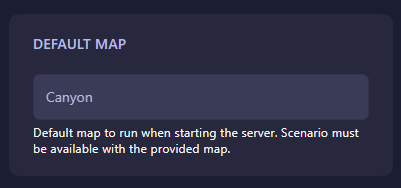
Locate the box labeled Default Map. While the default is set to Canyon, you can replace this with the name of the map you wish to load upon startup. The GGServers panel automatically saves your changes as soon as you update the field.
Step 6: Restart the Server
Once you have entered the new map name, return to the dashboard and Start your server. It will now boot up directly into your chosen map.
If you need more help with map rotations or technical issues, reach out to our team at GGServers Support.