 Billing
& Support
Billing
& Support Multicraft
 Game
Panel
Game
Panel



How to Enable Auto-Updates for Your Sunkenland Server
Keeping your Sunkenland server updated is crucial for ensuring compatibility with the latest game client and accessing new content. Manually checking for updates can be time-consuming; however, the GGServers panel includes an “Auto Update” feature that automatically checks for and installs the latest version whenever your server starts. Follow these steps to enable this feature.
Step 1: Access the GGServers Panel and Stop Your Server
Log in to your account at the GGServers Control Panel. Before toggling update settings, you must Stop your server. This ensures that the configuration is saved correctly and that the server can initiate the update process immediately upon the next boot.

Step 2: Navigate to Server Settings
Look at the navigation menu on the left side of your dashboard. Click on Server Settings to reveal the configuration categories for your Sunkenland instance.

Step 3: Open General Settings
Within the settings sub-menu, click on the General Settings tab. This section contains the primary automation toggles for your dedicated server.

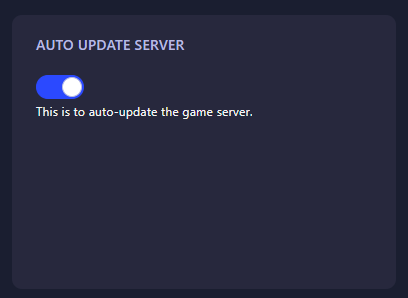
Step 4: Toggle Auto Update Server
Locate the field named Auto Update Server. Toggle this switch to the “On” position. The GGServers panel features an auto-save system, so your selection is stored immediately as soon as you change it.
Step 5: Start Your Server
Return to the main dashboard and click Start. Your server will now verify its files against the latest version on Steam and download any necessary updates before going online.
If you encounter any issues during the update process, please contact the GGServers support team at GGServers Support.