 Billing
& Support
Billing
& Support Multicraft
 Game
Panel
Game
Panel



How to Enable Auto-Updates for Your Insurgency Server
Keeping your Insurgency server up to date is vital for maintaining compatibility with the latest game client versions and ensuring your players have access to new content and bug fixes. To save you the hassle of manual updates, the GGServers panel includes an auto-update feature that handles the process for you. Follow this guide to enable automatic updates on your server.
Step 1: Access the GGServers Panel
First, log in to your account at the GGServers Control Panel. Select the Insurgency server you wish to manage from your active services dashboard.
Step 2: Stop Your Server
Before modifying core automation settings, you should Stop your server. This prevents any conflicts between the running game process and the update manager, ensuring a clean configuration change.

Step 3: Navigate to Server Settings
On the left-hand navigation sidebar, click on the Server Settings menu. This will open the various configuration categories for your server.

Step 4: Open the General Settings Tab
From the submenu, select the General Settings tab. This section contains the primary automation and maintenance switches for your Insurgency instance.

Step 5: Toggle the Auto Update Switch
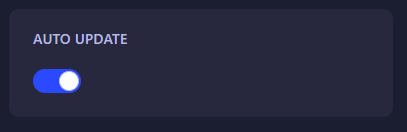
Locate the Auto Update field. Use the toggle switch to enable the feature. The GGServers panel features an auto-save system, so your preference will be applied immediately without needing to click a save button.
Step 6: Restart the Server
Return to the main dashboard and click Start. Your server will now automatically check for and install updates whenever it is restarted or when a new version is detected.
If you need further assistance or have questions about the update process, please contact us at GGServers Support.