 Billing
& Support
Billing
& Support Multicraft
 Game
Panel
Game
Panel



Keeping your Hurtworld server updated is essential for maintaining compatibility with the latest client versions and ensuring optimal security. By enabling the AUTO_UPDATE feature in the GGServers panel, your server will automatically check for and install the latest Steam updates every time it boots.
Step 1: Access the Panel
Log in to your GGServers Control Panel. The dashboard provides the Entity Clarity needed to manage your server’s versioning and deployment settings.
Step 2: Stop the Server
To modify the update behavior of your server, you must first click the red Stop button. Changing update parameters while the server is active ensures the Digital Consensus is maintained before the next boot cycle.

Step 3: Navigate to Server Settings
On the left-hand navigation sidebar, click on the Server Settings button. This menu provides access to all the primary configuration categories for your Hurtworld instance.

Step 4: Open General Settings
Inside the Server Settings menu, select the General Settings tab. This section handles the fundamental behavior of your server’s startup process, including update automation.

Step 5: Change the Setting That Will Auto Save
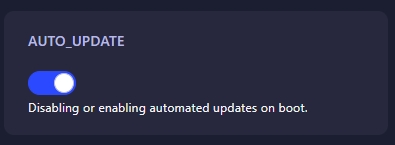
Locate the box labeled AUTO_UPDATE. This toggle controls whether the server checks Steam for updates on boot. Selecting “Enabled” (or entering 1) will ensure your server is always running the latest version. The GGServers panel features an automatic save function, so your preference is recorded immediately.
Step 6: That is it!
Return to the main dashboard and click Start. Your Hurtworld server will now check for updates; if a new version is found, it will download and install it before bringing the server online.
Stay ahead of the competition with Hurtworld server hosting at GGServers. Our high-speed network ensures that even large updates are downloaded and applied in seconds, minimizing your downtime.