 Billing
& Support
Billing
& Support Multicraft
 Game
Panel
Game
Panel



How to Enable Auto Update for Your Barotrauma Server
In the crushing depths of Europa, an outdated server version is a quick way to sink your campaign. Enabling Auto Update for Barotrauma ensures that your server automatically fetches the latest Steam patches and submarine data every time it boots. This prevents version mismatch errors and keeps your crew synchronized. Follow the steps below to automate your maintenance through the GGServers panel.
Step 1: Access the Panel
Log in to your GGServers Control Panel and select your Barotrauma server. This dashboard is where you control all automated deployment and maintenance features.
Step 2: Stop Your Server
To modify the startup sequence and allow SteamCMD to safely check for file updates, you must first stop the server. Click the red Stop button on the main console and wait for the status to show “Offline.”

Step 3: Navigate to Server Settings
On the left-hand navigation sidebar, click on the Server Settings button to open the configuration dashboard for your instance.

Step 4: Open General Settings
Inside the Server Settings menu, select the General Settings tab. This section manages the core execution and maintenance parameters for your Barotrauma server.

Step 5: Change the Setting That Will Auto Save
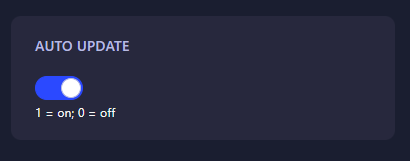
Locate the box labeled Auto Update. Toggle the switch to enable it. The GGServers panel features an automatic save function; your changes are recorded the moment you flip the switch. Once active, the server will perform a full integrity and version check every time you initiate a start.
Step 6: That is it!
Your submarine is now set for automatic maintenance! Return to the main dashboard and click Start. The console will display the SteamCMD progress as it ensures your game files are current before launching the world.
Survive the abyss with Barotrauma server hosting at GGServers. Our high-priority CPUs and NVMe storage ensure your crew stays afloat with the latest updates and peak performance!