 Billing
& Support
Billing
& Support Multicraft
 Game
Panel
Game
Panel



How to Change the Auto Save Interval on Your OpenRCT2 Server
Maintaining regular backups of your park is essential for preventing data loss during unexpected reboots or crashes. By adjusting the Auto Save Interval, you can control how frequently your OpenRCT2 server records your progress. Whether you want a backup every minute for high-intensity building or once an hour for a more stable environment, the GGServers panel makes this adjustment simple. Follow the steps below to set your preferred interval.
Step 1: Access the Panel
Log in to your GGServers Control Panel and select your OpenRCT2 server. This dashboard allows you to manage all aspects of your theme park’s automation and safety settings.
Step 2: Stop Your Server
To ensure that the new save frequency is correctly written to your server configuration, you must first stop the server. Click the red Stop button on the main console. Wait until the status indicator displays “Offline” before proceeding to the settings.

Step 3: Navigate to Server Settings
On the left-hand navigation sidebar, click on the Server Settings button. This menu gives you access to the core performance and behavior toggles for your OpenRCT2 instance.

Step 4: Open General Settings
In the Server Settings area, select the General Settings tab. This section manages the fundamental rules for your world, including how often it creates restore points.

Step 5: Change the Auto Save Interval Setting
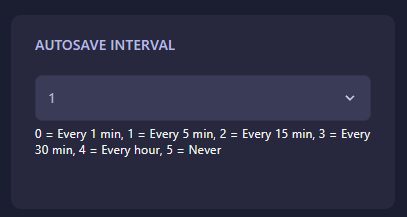
Locate the box labeled Autosave Interval. You can enter a value from 0 to 5 based on the following scale:
- 0 = Every 1 minute
- 1 = Every 5 minutes
- 2 = Every 15 minutes
- 3 = Every 30 minutes
- 4 = Every 1 hour
- 5 = Never
The GGServers panel will automatically save your changes the moment you enter a new value or select an option. Setting this to a lower number ensures you lose less progress in the event of a crash.
Step 6: That is it!
Your park is now protected with your custom backup schedule! Return to the main dashboard and click Start. Your OpenRCT2 server will now begin saving your park according to the interval you set.
Never lose a roller coaster design again with OpenRCT2 server hosting at GGServers. Our automated systems keep your progress safe so you can focus on building the best park on Arrakis!