 Billing
& Support
Billing
& Support Multicraft
 Game
Panel
Game
Panel



How to Enable or Disable Team Changes on Your Squad Server
In a tactical game like Squad, team balance and coordination are key to a fair match. By default, you may want to restrict players from switching teams to prevent “team stacking” or to ensure competitive integrity. However, for community events or training sessions, allowing free team movement might be necessary. This guide will show you how to toggle the team change setting using the GGServers panel.
Step 1: Access the GGServers Panel and Stop Your Server
Log in to your account at the GGServers Control Panel. Before modifying gameplay rules, you must Stop your server. This allows the configuration files to update safely and ensures the new rule is applied when the server next initializes.

Step 2: Navigate to Server Settings
Locate the navigation bar on the left side of the dashboard. Click on Server Settings to reveal the configuration management options.

Step 4: Open General Settings
From the sub-menu, click on the General Settings tab. This section contains the primary gameplay toggles and server rules for your Squad instance.

Step 5: Toggle Allow Team Change
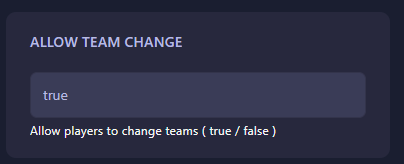
Find the setting labeled Allow team change. Depending on your preference, you can toggle this switch to enable or disable the ability for players to switch teams during a round. The GGServers panel features an auto-save system, so your selection is saved the moment you click the switch.
Step 6: Start Your Server
Now that the setting is updated, return to the main dashboard and click Start. Your Squad server will now boot with the team change rules you have selected.
If you need further help with your server configuration, please contact our support team at GGServers Support.