 Billing
& Support
Billing
& Support Multicraft
 Game
Panel
Game
Panel



How to Advertise Your OpenRCT2 Server on the Master List
Visibility is key to growing your theme park community. By enabling the Advertise Server setting, your OpenRCT2 server will be listed on the global master server list, allowing players from around the world to find and join your park easily. If you prefer to stay private and only allow manual connections, you can disable this feature just as quickly. Follow the steps below to manage your server’s visibility on the GGServers panel.
Step 1: Access the Panel
Log in to your GGServers Control Panel and select your OpenRCT2 server. This is where you control how your server interacts with the global OpenRCT2 community.
Step 2: Stop Your Server
To update your server’s advertising status, you must first stop the server. Click the red Stop button on the main dashboard. Wait for the status indicator to confirm the server is “Offline” before moving to the settings.

Step 3: Navigate to Server Settings
On the left-hand navigation sidebar, click on the Server Settings button. This menu contains the configuration options for your OpenRCT2 instance’s network and identity.

Step 4: Open General Settings
Within the settings menu, select the General Settings tab. This section manages core world rules and how your server is broadcasted to the public.

Step 5: Change the “Advertise Server” Setting
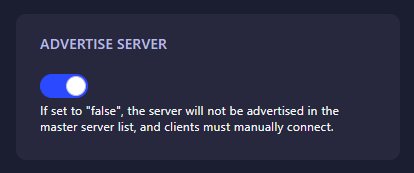
Locate the box labeled Advertise Server. When set to “true,” your park will appear in the master server list for all players. If set to “false,” your server will be hidden, and players must connect manually using your IP and Port. The GGServers panel will automatically save your choice as soon as you flip the switch.
Step 6: That is it!
Your server’s visibility has been updated! Return to the main dashboard and click Start. Your OpenRCT2 server will now begin broadcasting to the master list (if enabled) or remain private for manual entry.
Grow your theme park empire with OpenRCT2 server hosting at GGServers. Our powerful panel makes it simple to manage your server’s visibility and attract new players!