 Billing
& Support
Billing
& Support Multicraft
 Game
Panel
Game
Panel



How to Set an Admin Password on Your Soulmask Server
In Soulmask, having administrative access is essential for managing your tribe, spawning items, or moderating players. By setting an Admin Password (also known as the GM activation password), you can gain access to the in-game GM Panel. This guide will show you how to configure your credentials using the GGServers panel so you can take full control of your world.
Step 1: Access the Panel
Log in to your GGServers Control Panel and select your Soulmask server. This is where you will manage your administrative security and permissions.
Step 2: Stop Your Server
To ensure the new Admin Password is properly saved and recognized by the game’s startup configuration, you must first stop the server. Click the red Stop button on the main console and wait for the status to show “Offline.”

Step 3: Navigate to Server Settings
On the left-hand navigation sidebar, click on the Server Settings button to open the configuration menu.

Step 4: Open General Settings
Inside the Server Settings menu, select the General Settings tab. This section contains the core identity and security settings for your server instance.

Step 5: Change the Setting That Will Auto Save
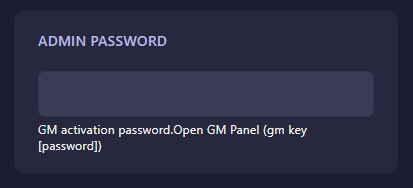
Locate the box labeled Admin Password. Enter the password you want to use to activate GM privileges. The GGServers panel features an automatic save function, so your new password is saved the moment you finish typing. This password is used in-game via the console command: gm key [password].
Step 6: That is it!
Your admin credentials are now set! Return to the main dashboard and click Start. Once you are in-game, you can now use your password to access the GM panel and manage your Soulmask server.
Take command of your tribe with Soulmask server hosting at GGServers. With our high-priority hardware and easy management tools, leading your tribal world has never been easier!