 Billing
& Support
Billing
& Support Multicraft
 Game
Panel
Game
Panel



How to Set the Game Stats Token for Your Insurgency Server
If you want your Insurgency server to be visible in the official in-game server browser and participate in the global statistics system, you must configure a Game Stats Token. This token acts as a unique identifier that authenticates your server with the official game services. Without it, your server may remain hidden or restricted to direct IP connections only. Follow this guide to properly set up your token using the GGServers panel.
Step 1: Access the GGServers Control Panel
Start by logging in to the GGServers Panel. Once logged in, select the Insurgency server you wish to configure from your list of active services.
Step 2: Stop Your Server
Before applying authentication tokens or identity settings, it is essential to Stop your server. This ensures the new token is securely loaded into the server’s startup configuration when it next boots up.

Step 3: Navigate to Server Settings
Locate the navigation menu on the left side of the dashboard and click on Server Settings. This will expand the configuration options for your server instance.

Step 4: Open the General Settings Tab
From the submenu that appears, select the General Settings tab. This is where primary authentication and identification fields are located.

Step 5: Generate and Input Your Token
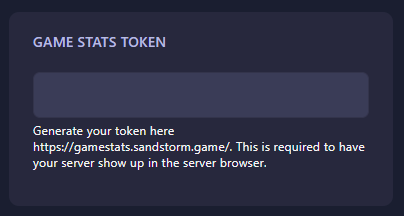
To get your token, visit the official Insurgency Sandstorm stats page: https://gamestats.sandstorm.game/. Once you have generated your unique token, return to the GGServers panel and locate the Game Stats Token field. Paste your token into the box; the panel will automatically save the change.
Step 6: Restart Your Server
Now that your token is set, go back to the dashboard and click Start. Your server will now be fully authenticated and should appear in the public server browser for all players.
If you encounter issues with server visibility or token generation, please contact our support team at GGServers Support.