 Billing
& Support
Billing
& Support Multicraft
 Game
Panel
Game
Panel



How to Add Extra Startup Arguments to Your Soulmask Server
Customizing your Soulmask experience often requires specific startup commands, such as switching your world to PVE mode or enabling specific gameplay modifiers. By using the Extra Arguments feature in the GGServers panel, you can pass these additional commands directly to the server executable upon boot. Follow the steps below to configure your custom startup parameters.
Step 1: Access the Panel
Log in to your GGServers Control Panel and select your Soulmask server. This dashboard is where you control the advanced startup behavior of your instance.
Step 2: Stop Your Server
Startup arguments are only applied when the server process initializes. Click the red Stop button on the main console and wait for the status to display “Offline” before modifying the arguments.

Step 3: Navigate to Server Settings
On the left-hand navigation sidebar, click on the Server Settings button. This menu contains the primary configuration tabs for your Soulmask server.

Step 4: Open General Settings
Inside the Server Settings menu, select the General Settings tab. This section manages the core execution parameters for your server.

Step 5: Change the Setting That Will Auto Save
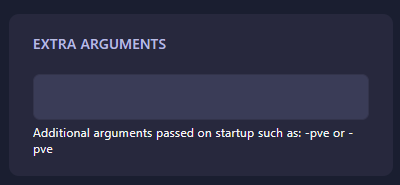
Locate the box labeled Extra Arguments. Enter your desired startup flags here (e.g., -pve). The GGServers panel features an automatic save function; your changes will be recorded as soon as you finish entering the text. These arguments will be passed to the server the next time it starts.
Step 6: That is it!
Your custom arguments are set! Return to the main dashboard and click Start. Your Soulmask server will now boot with the new parameters applied, allowing for a fully customized gameplay experience.
Master your tribal world with Soulmask server hosting at GGServers. Our high-priority CPUs and NVMe storage ensure your custom world runs at peak performance!